
How to Make a Living Photo (WebAR) in 3 Clicks
Stories AR team
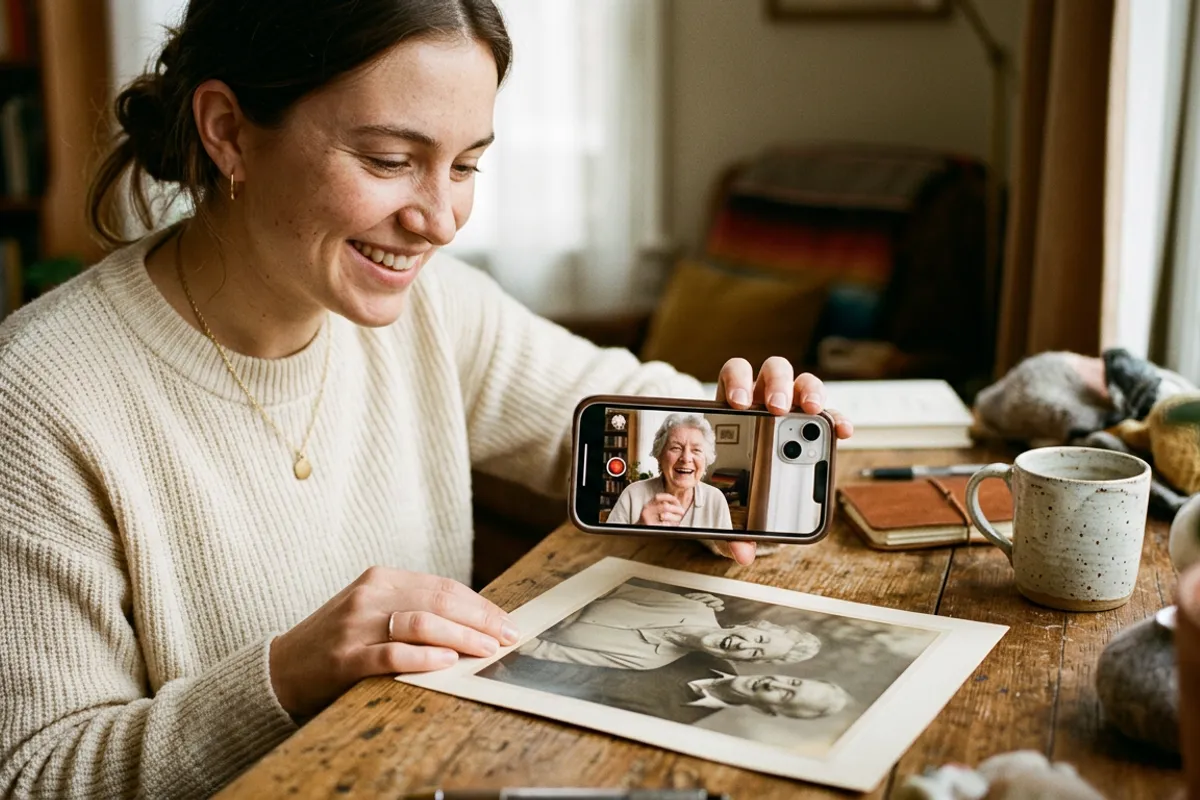
A living photo is a printed picture that starts playing a video the moment someone points a phone camera at it. No app, no code — the whole thing runs in the browser. Here is exactly how to make one with Stories AR, from upload to a working QR code, in about two minutes.
Quick answer
Upload a photo + a video in the Stories AR dashboard, click Create — you get a link and a QR code. Anyone who scans it sees the photo come alive in their browser. Free 14-day trial, no card required.
Key takeaways
- You need just two files: a photo (the print) and a video that starts from the same frame.
- The QR code and link never change — you can swap the video anytime without reprinting.
- Viewers don't install anything: WebAR opens right in Safari, Chrome or any other browser.
- One AR photo takes about two minutes to create; batch upload handles hundreds at once.
What you need before you start
Two files. First, the photo you are going to print — a portrait, a wedding shot, a product picture, album art, anything. Second, a video. The magic works best when the first frame of the video matches the photo: the print appears to "wake up" and start moving.
If you shot a video first, you can grab the photo from it: export the first frame, or use the built-in editor in Stories AR to trim the video and pick the marker frame.
Step 1 — upload the pair
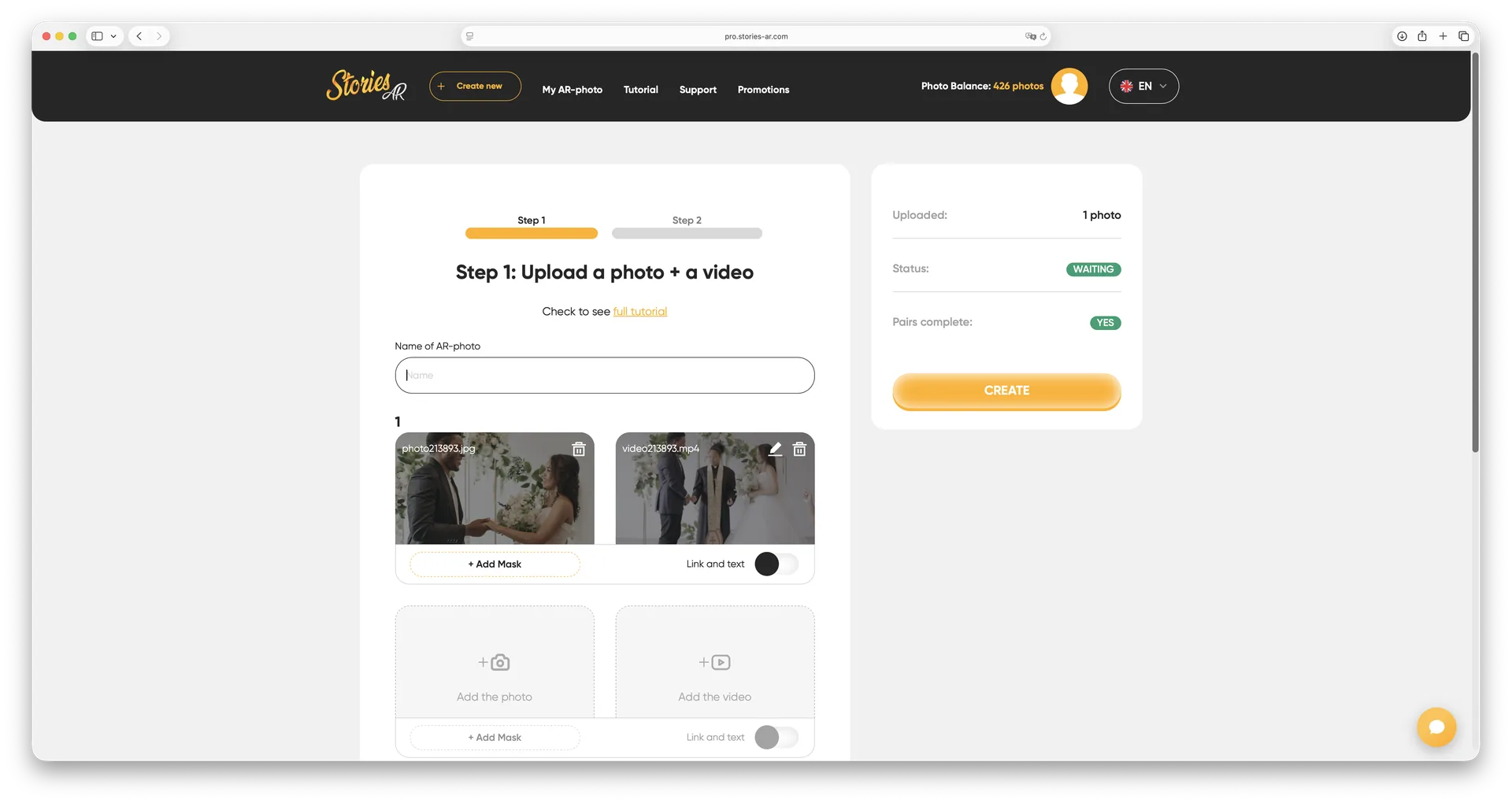
Sign in at pro.stories-ar.com, hit Create new and drop both files into the upload form. The dashboard shows the photo and the video side by side so you can check they match.
Need many photos at once — say, a whole wedding album or a merch drop? Use batch upload: drop all the pairs in one go and the platform pairs them up.
Step 2 — trim and fine-tune
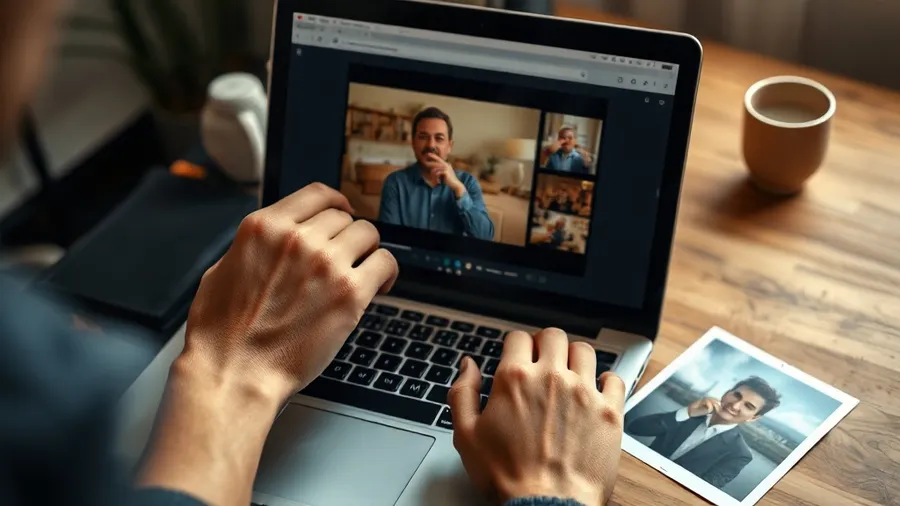
The built-in editor lets you trim the video, choose the exact marker frame and add a call-to-action button on top of the living photo — one tap can send the viewer to your site, product page or socials.
You can also add a mask so the video plays only inside the photo's borders, which makes the effect look cleaner on textured prints.
Step 3 — get the QR code and share it
Click Create and the AR photo is live. You get a short link and a QR code — download it and put it on the print, the packaging or a business card.
When someone scans the code, the photo opens in their browser camera view and starts playing instantly. It works in Safari, Chrome, Firefox, Opera, Brave, DuckDuckGo — and there is a native Stories AR app for those who prefer it.
The best part: the QR code stays the same forever. Replace the video in the dashboard and every printed copy instantly plays the new one — no reprints, no new codes.
What it costs and how to try it
Stories AR has a free 14-day trial with no card required — enough to make your first living photos and show them around. Paid plans start when you need more photos and white-label features.
Photographers usually sell living photos as a premium add-on to a shoot; brands use them on packaging and event materials to move offline traffic online. Scan analytics in the dashboard shows exactly how many people scanned and watched each photo.
“The photo and QR code stay the same forever. Replace the video — and every printed copy instantly plays the new one.”
— Stories AR team
Make your first living photo
Free 14-day trial. Upload a photo and a video — get a working AR link in about two minutes.
Start for freeFrequently asked questions
Do viewers need to install an app?+
No. The living photo opens right in the phone browser via link or QR code. A native app exists too, but it is optional.
What happens if I want to change the video later?+
Just replace it in the dashboard. The QR code and link stay the same, so every printed copy starts playing the new video immediately.
Does it work on both iPhone and Android?+
Yes — WebAR runs in the browser on both platforms: Safari, Chrome, Firefox, Opera, Brave, DuckDuckGo and others.
How long can the video be?+
Short clips of 10–60 seconds work best: they load fast and loop nicely. The platform accepts longer videos too.