
How to Add Video to a Printed Photo: QR vs AR
Stories AR team
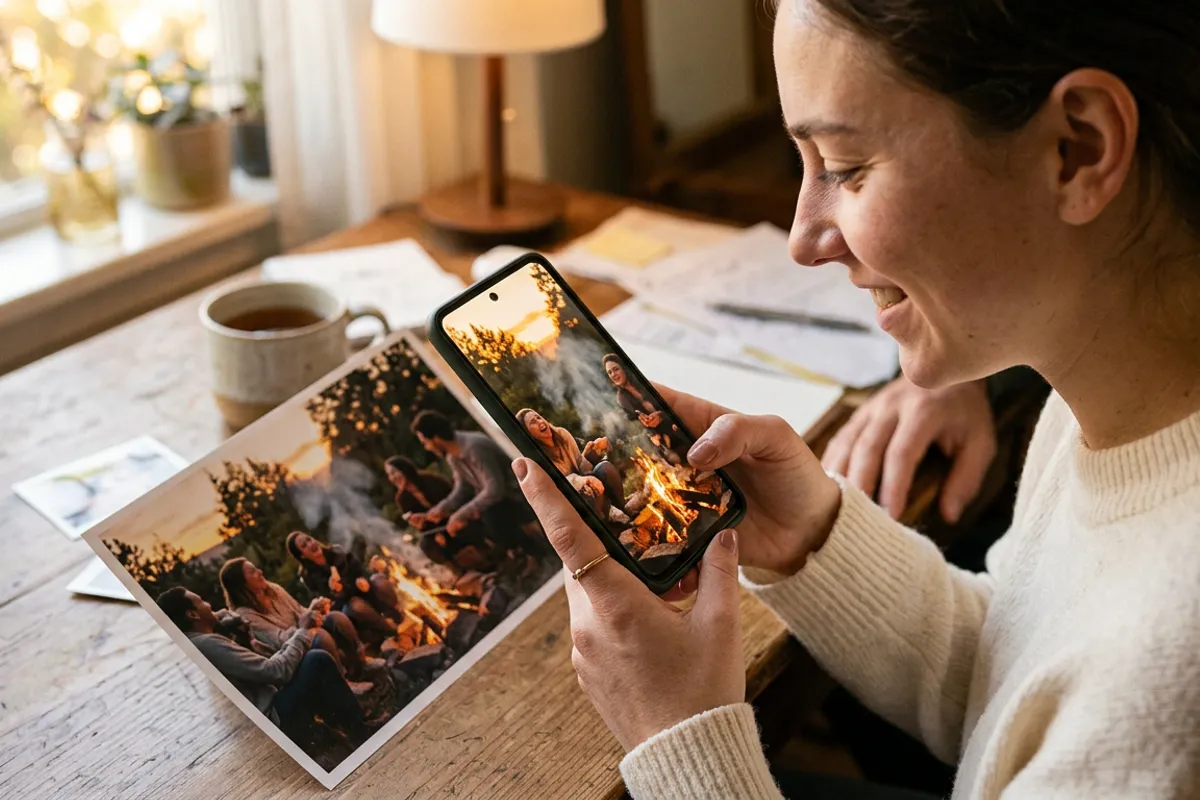
You have a printed photo and a video that belongs with it — a wedding print and the vows, a product shot and a demo clip, a portrait and a message. There are exactly two practical ways to connect them: put a QR code next to the photo that opens the video, or use image-recognition AR so the photo itself becomes the trigger and the video plays on top of the print. This guide walks through both routes step by step and shows when each one wins.
Quick answer
There are two ways to add video to a printed photo. Route one: generate a QR code that links to the video and print it next to the photo — the viewer scans and watches in the browser. Route two: image-recognition AR — upload the photo and video to Stories AR, and the printed photo itself triggers the video, which plays anchored on top of the print. Both work without an app.
Key takeaways
- A plain QR link opens the video on a flat screen; image-recognition AR plays the video directly on top of the print — the photo appears to come alive.
- With Stories AR you get both in one product: the QR code opens the browser camera, and the photo acts as the AR trigger.
- The video can be replaced anytime without reprinting — the code and the trigger photo stay the same.
- Detailed photos with faces and textures make the best triggers; flat colors and repeating patterns don't.
Route 1: a QR code next to the photo
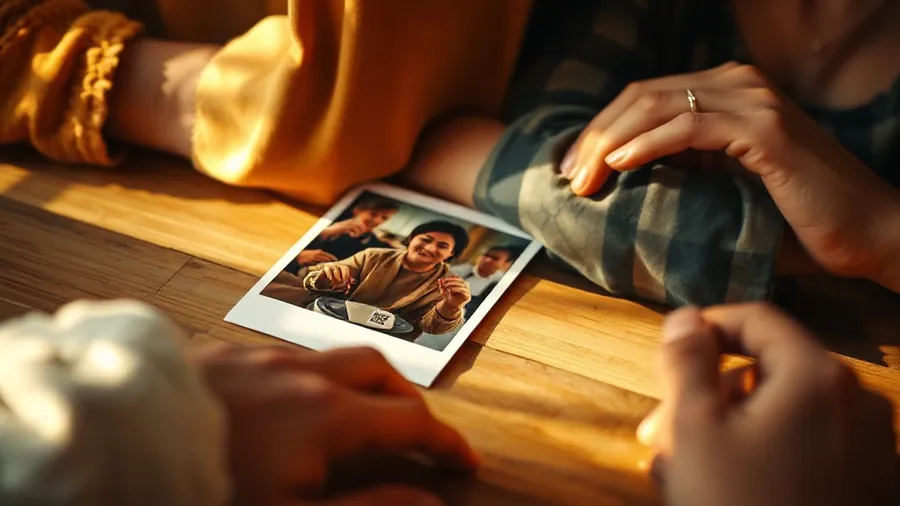
The simplest connection between print and video is a link. Upload the video anywhere it can be streamed, generate a QR code for the URL, and print the code next to the photo — on the back, in a corner, on the album page margin.
The viewer scans the code and the video opens in the phone browser. It always works, it needs no explanation, and it's the right choice when the video is long-form content: a full wedding film, an event recording, an interview.
The weakness is the experience. The video plays on a flat screen, disconnected from the print. The photo is just a picture with a barcode next to it — nothing magical happens on the paper itself. For details on how QR-to-video linking works and where to place codes, see the QR code video page.
Route 2: the photo itself is the trigger (image-recognition AR)
The second route makes the print the interface. You pair the photo and the video on a WebAR platform; the platform's computer vision learns the photo as a trigger image. When a viewer points the phone camera at the print, the video appears anchored exactly on top of the photo, matching its position and perspective — the picture starts moving in the frame.
This is what people mean by AR pictures or living photos. The emotional difference over a plain QR link is enormous, especially when the first frame of the video matches the printed image: the photo appears to wake up.
Modern WebAR runs in the browser — Safari on iOS, Chrome on Android — so viewers still don't install anything. The camera feed is processed locally on the device; nothing is recorded or uploaded.
Step-by-step: the QR route
If you only need a scannable link to a video, the process takes minutes:
- Upload the video to any hosting that plays in mobile browsers.
- Copy the direct link and generate a QR code with any QR generator.
- Test the code on both an iPhone and an Android phone before sending to print.
- Place the code near the photo at a scannable size — roughly 2×2 cm minimum for arm's-length scanning.
- Prefer a link you control (a short link or a platform link), so you can change the destination video later without reprinting.
Step-by-step: the AR route with Stories AR
The AR route adds one upload step and gives you both mechanisms at once:
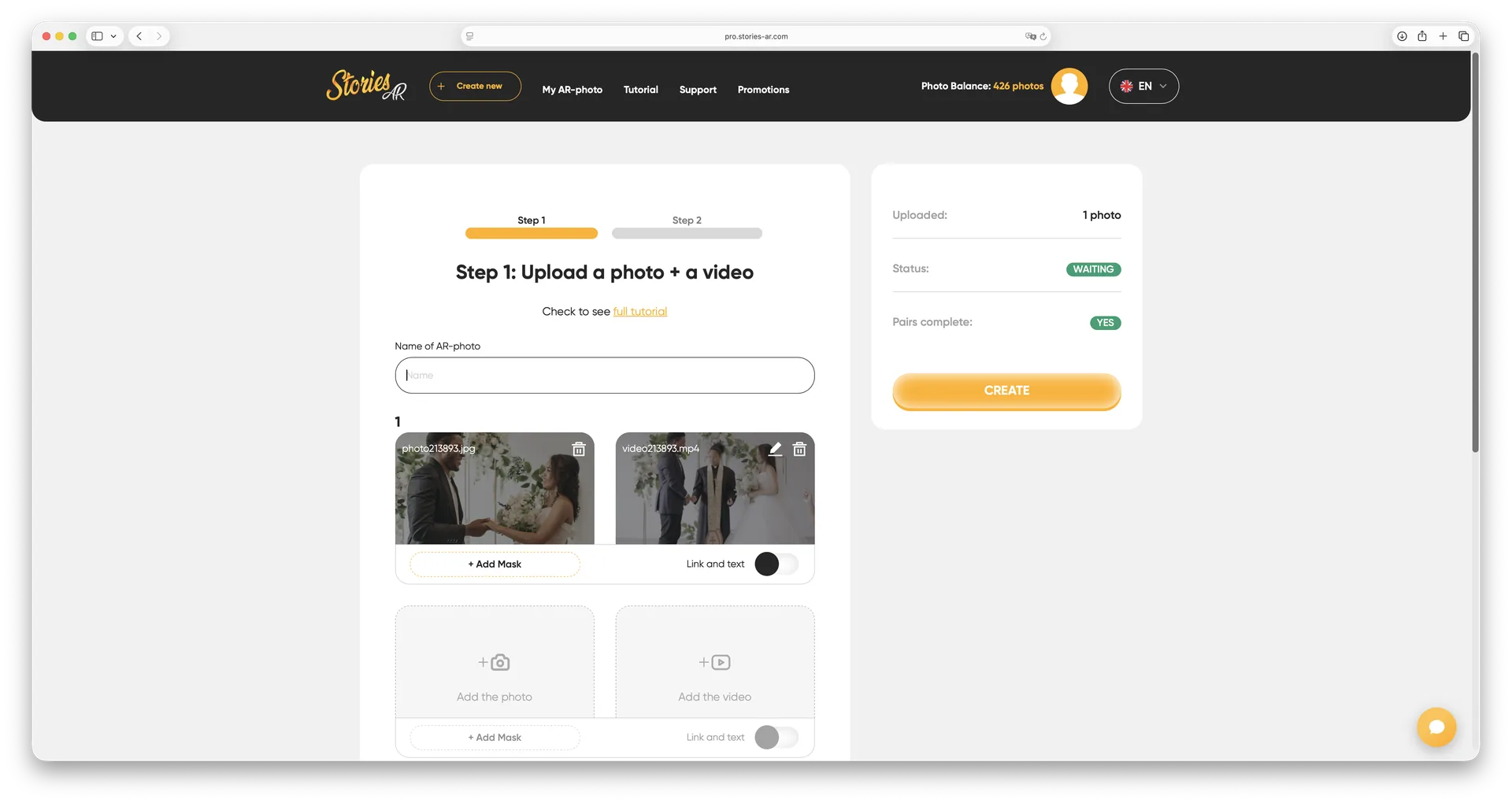
- Sign up at pro.stories-ar.com and click Create.
- Upload the photo you will print and the video. Best result: the video's first frame matches the photo.
- Trim the video and pick the marker frame in the built-in editor if needed.
- Download the generated QR code and place it on or near the print.
- The viewer scans the QR code, the browser opens the camera, they point it at the photo — and the video plays on top of the print.
- To change the video later, just replace it in the dashboard: the QR code and the printed photo stay exactly the same.
Which route to choose — and what makes a good trigger photo
Choose the plain QR link when the video is long, when the "photo" is actually a document or flat graphic, or when you need the absolute minimum of moving parts. Choose image-recognition AR when the print itself is the product: portraits, albums, postcards, posters, packaging — anywhere the wow moment on the paper is the point.
One constraint of the AR route: the photo must work as a trigger. Detailed images — faces, textures, varied scenes — track reliably; flat single-color designs, repeating patterns and heavily glossy laminated prints do not. Sizes from business card to poster all work. If you're unsure whether your image qualifies, check the guidelines on the trigger image page before printing.
In practice most creators don't have to choose: with Stories AR the QR code is the entry point and the photo is the trigger, so a viewer who scans gets the full AR experience, and the same link works even for someone who only opens it as a plain video. More than 259 000 AR photos have been created on the platform this way.
Attach a video to your print in two minutes
Upload a photo and a video at pro.stories-ar.com — you get a QR code, and the printed photo itself becomes the trigger. First AR photos are free.
Start for freeFrequently asked questions
Do viewers need an app for either route?+
No. A QR link opens the video in the browser, and Stories AR's image-recognition AR also runs fully in the browser — Safari on iOS, Chrome on Android.
Can I change the video after the photo is printed?+
Yes, on both routes — if you control the link. In Stories AR you replace the video in the dashboard and the same print and QR code play the new clip immediately.
Will any photo work as an AR trigger?+
Most will. You need visual detail — faces, textures, varied scenes. Flat colors, repeating patterns and heavy gloss lamination reduce recognition.
Does the print size matter?+
Triggers work from business-card size up to posters, and even from screens. Just keep the QR code large enough to scan comfortably.