8th Wall Migration: Move Image AR Before the Shutdown
Stories AR team

Niantic closed access to 8th Wall on February 28, 2026, and hosted experiences stop working on February 28, 2027. If your projects are image-tracking AR — a print that plays a video when a camera points at it — you can move them without writing a line of code. This is the hands-on checklist: what to export, how to re-upload, and what to re-test before your QR codes go dark.
Quick answer
Inventory your 8th Wall projects and separate image-tracking ones from 3D and world-tracking scenes. Export each trigger image and its video, re-upload the pairs to Stories AR, generate new QR codes for print runs, and test every experience from both a printed copy and a screen. Everything must be done before hosted 8th Wall experiences stop on February 28, 2027.
Key takeaways
- Hosted 8th Wall experiences stop working on February 28, 2027 — migrate while your projects are still accessible.
- Only image-to-video projects map directly to Stories AR; 3D scenes and face effects need a different tool.
- Export the original trigger image and video for each project — the browser preview is not a source file.
- New platform means new QR codes: audit every print run that carries an old code.
- Test each migrated experience from print and from a screen before you call it done.
Step 1 — inventory your projects by type
Open your 8th Wall workspace and list every live project. For each one, note what kind of tracking it uses. Image-tracking projects — where a flat picture triggers content, usually a video — are the ones this guide covers. World-tracking scenes, 3D models placed on the floor, and face effects belong in a separate column.
Be honest in the sorting. A project that shows a video anchored to a printed photo is a straight migration. A project that spawns a 3D character next to the photo is not — it needs an SDK-level replacement.
For the image-to-video column, Stories AR is a direct fit: it does exactly one thing — a printed photo plays a video in the browser, no app. The full platform comparison lives on the 8th Wall alternative page; this article stays on the how.
Step 2 — export trigger images and videos
For every image-tracking project, download two source files: the original trigger image (the exact picture that gets printed) and the video it plays. Pull them from your own asset storage if you have it — original resolution beats anything re-exported from a web console.
Check each trigger image against recognition basics before re-upload: detailed photos with faces and textures track well, while flat colors, repeating patterns and glossy laminate hurt recognition. The AR trigger image guide covers what makes a marker reliable.
If a trigger image was cropped or color-graded inside 8th Wall, export the final version — the file that actually matches the print. A mismatch between the uploaded marker and the physical print is the most common reason a migrated experience fails to lock on.
Step 3 — re-upload to Stories AR, pair by pair
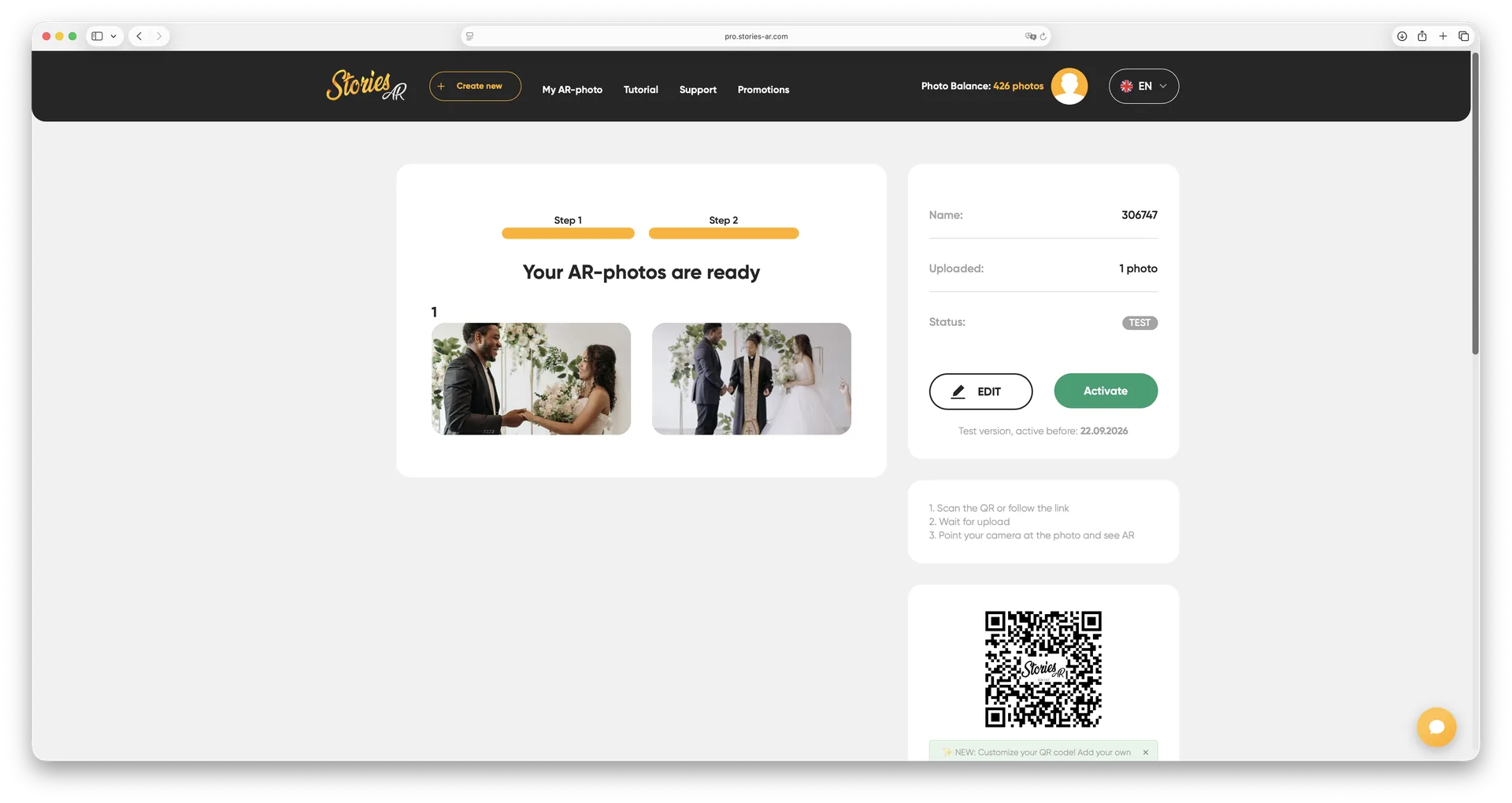
Sign up at pro.stories-ar.com, hit Create new and upload the first photo + video pair. The dashboard shows them side by side so you can confirm the match. Repeat per project, or use batch upload if you are moving dozens of pairs at once.
In the built-in editor, trim the video and pick the marker frame so playback starts from the frame that matches the print — that is what makes the photo appear to wake up. You can also add a call-to-action button on top of the playing video.
Each created AR photo gets a permanent link and QR code. From this point on the video is swappable: replace it in the dashboard anytime and every printed copy plays the new one without reprinting.
Step 4 — regenerate QR codes on print runs
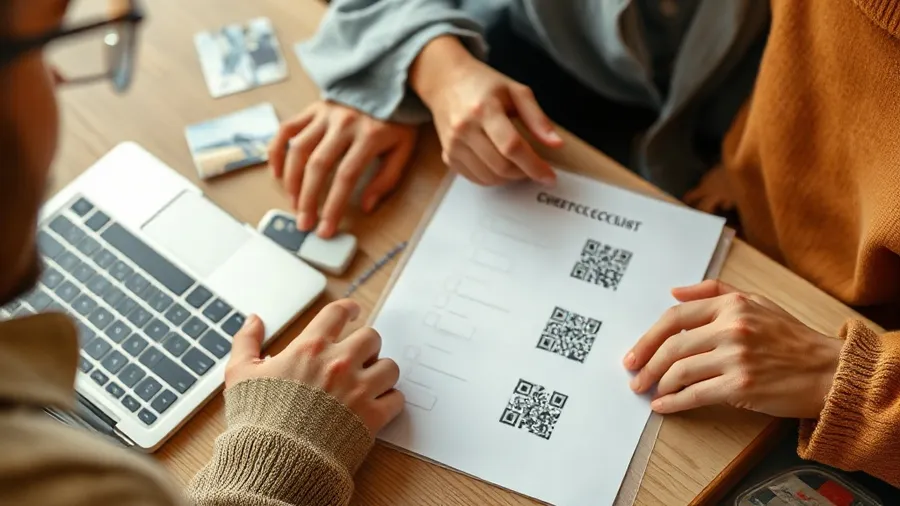
Your old QR codes point at 8th Wall URLs, and those die with the hosted experiences. Audit everything in circulation: albums, postcards, packaging, posters, business cards. Anything reprinted after migration should carry the new Stories AR code.
For material you cannot reprint, a sticker with the new QR code over the old one is a workable bridge. Prioritize by lifespan: a wedding album will be scanned for years, a seasonal flyer will not.
One upside of the move: the new codes are the last ones you will need to print. The Stories AR link never changes even when the video does.
Step 5 — test, and know what does not migrate
Test every migrated experience twice: scan the QR from a physical print, and point the camera at the trigger image shown on a laptop or phone screen. Stories AR recognizes markers from screens too, which is handy for remote checks. Try both iPhone Safari and Android Chrome — the live demo shows what a correct result looks like.
What does not migrate: 3D scenes, world-tracking experiences and face effects. Stories AR is an image-to-video platform, not a general AR SDK. For those projects look at Zappar or Blippar, or build natively on ARKit and ARCore.
Budget-wise, image-to-video migration is light: the free tier covers your first AR photos, and PRO is $24/month billed yearly for 20 AR photos a month. More than 62 000 photographers already run their image AR this way.
“A project that shows a video anchored to a printed photo is a straight migration. Sort your inventory first — everything else follows from that.”
— Stories AR team
Move your first project today
Upload a trigger image and its video to Stories AR — you get a working browser AR link and a fresh QR code in about two minutes.
Start for freeFrequently asked questions
When exactly do 8th Wall projects stop working?+
Access to the platform closed on February 28, 2026, and hosted experiences stop working on February 28, 2027. After that date, old links and QR codes pointing at 8th Wall will not open.
Can I migrate 3D or world-tracking projects to Stories AR?+
No. Stories AR only does image-to-video AR — a printed photo playing a video. For 3D scenes and face effects consider Zappar, Blippar, or native ARKit/ARCore development.
Do I have to reprint everything after migration?+
Only the QR code changes. Reprint or re-sticker materials that carry the old code; the trigger images themselves keep working as long as the uploaded marker matches the print.
Will viewers need to install an app after the move?+
No. Stories AR runs in the phone browser — Safari on iOS, Chrome on Android. Viewers scan the QR code and the camera opens right in the browser.